
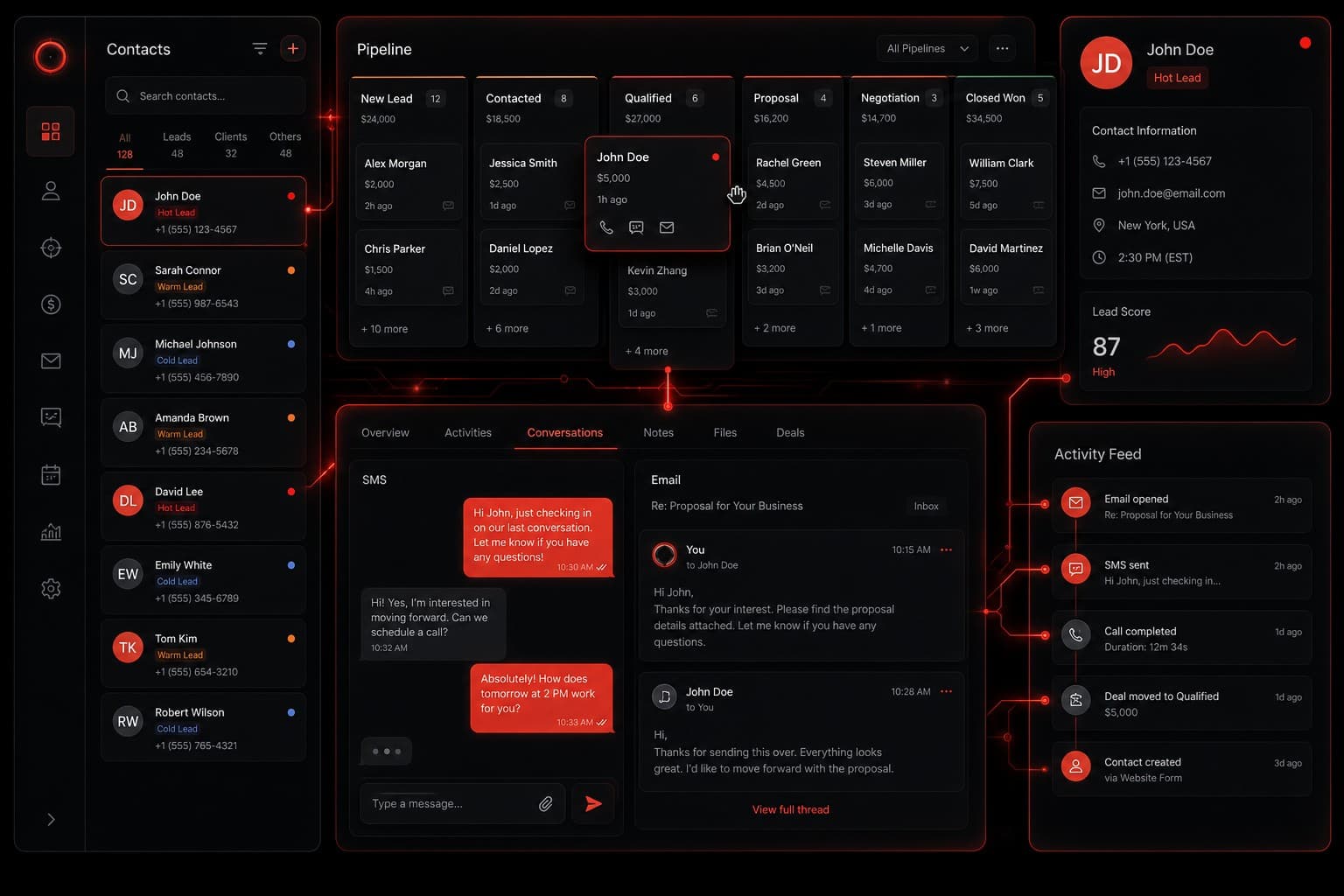
GoHighLevel's CRM isn't a bolted-on feature — it's the core of the entire platform. Every automation, every funnel, every SMS sequence, and every pipeline runs through the contact record. If you understand the CRM, you understand how GHL works. If you skip it, everything else feels disconnected.
I've set up GoHighLevel CRM systems for agencies, local businesses, and service providers. This tutorial walks through the full CRM from scratch — the way I actually configure it for clients, not the way the marketing page describes it.
Start a free 14-day GoHighLevel trial →
Quick Summary
- GoHighLevel's CRM manages contacts, pipelines, opportunities, and all communication from one unified dashboard
- Contacts are the foundation — every automation, workflow, and campaign triggers from the contact record
- Pipelines let you visually track leads through your sales process with drag-and-drop stages
- Smart Lists replace manual segmentation with dynamic, auto-updating contact groups
- Workflows connect everything — automating follow-ups, stage changes, task creation, and notifications
Getting Your CRM Set Up Right
Before adding a single contact, configure these foundational elements. Getting this right first saves hours of cleanup later.
Custom Fields
GoHighLevel ships with standard fields (name, email, phone, address), but real CRM power comes from custom fields tailored to your business.
Navigate to Settings → Custom Fields and create fields for the data points that actually drive your decisions:
- Lead Source (dropdown) — where the contact came from (Google Ads, referral, Facebook, website form)
- Service Interest (dropdown or multi-select) — what they're looking for
- Budget Range (dropdown) — qualification tier
- Notes (multi-line text) — free-form context
The key principle: only create fields you'll actively use for segmentation, automation triggers, or reporting. Every field you create adds a maintenance burden. I typically start clients with 5–8 custom fields and add more only when a workflow specifically needs them.
Tags vs. Custom Fields
GHL gives you both tags and custom fields. Here's the practical distinction:
- Tags are best for binary states and quick filters — "VIP," "Do Not Call," "Attended Webinar," "Hot Lead"
- Custom Fields are best for structured data with specific values — lead source, budget range, service type
Use tags for workflow triggers and quick visual identification. Use custom fields for data you need to report on or segment precisely.
Contact Sources
Every contact in GHL gets a source attribution — how they entered your system. Configure your sources in Settings → Custom Values so they're consistent:
- Form submissions auto-tag with the form name
- Manual imports can be tagged during upload
- API integrations (Zapier, n8n, Make) should pass source data in the import payload
Clean source data is what lets you eventually answer "which channel is actually generating our best leads?" — a question most small businesses can't answer because their CRM data is messy from day one.
The Contact Record: Your Command Center
Click any contact in GHL and you'll see the unified contact view. This is where the CRM earns its value — everything about that person lives in one place.
What You See
- Contact details — name, email, phone, address, all custom fields
- Conversation history — every SMS, email, Facebook message, Instagram DM, Google chat, and phone call in one chronological thread
- Activity timeline — form submissions, page visits, email opens, link clicks, appointment bookings
- Opportunities — which pipeline stages this contact appears in
- Tasks — assigned follow-ups and to-dos
- Notes — manual notes from your team
- Payments — invoices and transaction history
The unified conversation view is the feature that makes most people switch to GHL from their previous CRM. Instead of checking your email inbox, then your SMS app, then your Facebook messages, then your voicemail — every inbound and outbound communication lives on one screen.
Manually Adding Contacts
Contacts → Add Contact lets you create records one at a time. Useful for walk-ins, phone inquiries, or networking contacts. Fill in what you have — GHL doesn't require all fields.
Practical tip: always add at least a phone number OR email. A contact with neither is a dead record — you can't reach them through any automated channel.
Bulk Importing Contacts
Contacts → Import accepts CSV files. Map your CSV columns to GHL fields during import. Key considerations:
- Clean your CSV first — remove duplicates, standardize phone formats, fill missing fields where possible
- Map a tag for the import batch (e.g., "Import-June-2026") so you can identify and manage imported contacts as a group
- Set DND (Do Not Disturb) appropriately — if these contacts haven't opted in to your communications, mark them DND to avoid compliance issues
GHL handles duplicate detection by email and phone. If a contact already exists with the same email or phone, the import updates the existing record rather than creating a duplicate.
Pipelines: Visualizing Your Sales Process
Pipelines are GHL's visual representation of your sales process. If you've used Trello or a Kanban board, the concept is familiar — contacts move through stages from left to right as they progress toward a sale.
Creating Your First Pipeline
Navigate to Opportunities → Pipelines → Create Pipeline. You'll define:
- Pipeline name — match your actual sales process ("New Client Pipeline," "Renovation Projects," "Patient Intake")
- Stages — the steps a lead moves through
A common pipeline for a service business:
| Stage | Purpose |
|---|---|
| New Lead | Just entered the system, hasn't been contacted |
| Contacted | Initial outreach made, waiting for response |
| Qualified | Confirmed fit — budget, timeline, need verified |
| Proposal Sent | Quote or proposal delivered |
| Negotiation | Back-and-forth on terms or scope |
| Won | Deal closed, ready for onboarding |
| Lost | Didn't close — track the reason |
Start simple. You can always add stages later. I've seen businesses create 15-stage pipelines before their first lead comes in — then they never update the stages because it's too complicated to manage. Five to seven stages is the sweet spot for most businesses.
Working With Opportunities
Each card on the pipeline board is an opportunity — a potential deal attached to a contact. One contact can have multiple opportunities (e.g., a returning customer with a new project).
Click an opportunity to see:
- Contact details (linked from the contact record)
- Stage history — when the opportunity entered each stage
- Monetary value — expected deal size
- Expected close date
- Owner — which team member owns this deal
- Activity and notes
Drag opportunities between stages to update their status. This triggers any automations you've built on stage changes — which is where pipelines become truly powerful.
Pipeline Automations
The real value of pipelines isn't the visual board — it's the automations that fire when opportunities move between stages. Common triggers:
- Moved to "Contacted" → Start a follow-up SMS/email sequence
- Moved to "Qualified" → Notify the sales team, create a task to send proposal
- Moved to "Proposal Sent" → Start a 3-day follow-up sequence if no response
- Moved to "Won" → Send welcome email, create onboarding tasks, notify the team
- Moved to "Lost" → Add to a nurture sequence, tag with the loss reason
This is where GHL's CRM transitions from a database to an actual revenue engine. Most CRMs just store data. GHL acts on it.
Smart Lists: Dynamic Segmentation
Smart Lists are saved filters that automatically update as contacts match (or stop matching) your criteria. Think of them as living segments.
Creating a Smart List
Navigate to Contacts → Smart Lists → Create. Build your filter with conditions:
- Tag is "Hot Lead" AND Last Activity within 7 days → Active hot leads
- Lead Source is "Google Ads" AND Pipeline Stage is "New Lead" → Fresh paid leads needing outreach
- Tag is "Customer" AND Last Contact more than 90 days ago → Customers due for re-engagement
Smart Lists update in real time. When a contact meets the criteria, they appear. When they no longer meet it, they disappear. No manual list management required.
Practical Smart List Examples
| Smart List | Criteria | Use Case |
|---|---|---|
| Leads to Call Today | New leads, no outreach in 24hrs | Daily call list |
| Stale Proposals | Proposal sent, 5+ days, no response | Follow-up triggers |
| VIP Customers | Customer tag + $5K+ lifetime value | Priority support |
| Re-engagement Pool | Customer + 90+ days since last contact | Reactivation campaigns |
| DND Contacts | Do Not Disturb enabled | Compliance audit |
I set up Smart Lists for every client during onboarding. They replace the "pull a report" mentality with always-current visibility into key segments.
Workflows: The Automation Engine
GHL Workflows are the visual automation builder that connects your CRM data to actions. If pipelines are where you track progress, workflows are where you automate the response.
If you haven't explored workflows yet, I wrote a deep dive on GHL automation workflows that covers the full builder in detail. Here's how they connect to the CRM specifically.
CRM-Triggered Workflows
Every workflow starts with a trigger. CRM-relevant triggers include:
- Contact Created — fires when a new contact enters the system
- Contact Tag Added/Removed — fires when a specific tag changes
- Pipeline Stage Changed — fires when an opportunity moves stages
- Contact DND Updated — fires when communication preferences change
- Task Completed — fires when an assigned task is marked done
- Custom Field Changed — fires when a specific field value updates
A Real Workflow Example: New Lead Follow-Up
Here's a workflow I build for virtually every client:
Trigger: Contact Created (from any source)
Steps:
- Wait 2 minutes — let the form confirmation page load, avoids feeling bot-like
- Send SMS — "Hi
{first_name}, thanks for reaching out to{company}. I'll personally follow up within the hour. —{assigned_user}" - Send Email — Welcome email with what to expect and key info
- Create Task — "Call
{first_name}" assigned to the contact owner, due in 1 hour - Internal Notification — Slack/email alert to the team: "New lead:
{first_name}{last_name}—{lead_source}" - Wait 24 hours
- If/Else: Was the contact called? (check for call activity)
- Yes → End workflow
- No → Send follow-up SMS, escalate task to manager
This single workflow replaces what used to require three separate tools and manual coordination. The contact record captures every touchpoint — the SMS, the email, the task creation, the internal notification — all visible in the activity timeline.
Conversations: Unified Inbox
The Conversations tab is GHL's unified inbox. Every message — SMS, email, Facebook Messenger, Instagram DM, Google Business Messages, WhatsApp, and even live chat — appears in one feed.
For CRM purposes, this means:
- No context switching — respond to any channel from one screen
- Full history — scroll up to see every previous interaction with this contact
- Assignment — conversations can be assigned to team members
- Snippets — saved reply templates for common responses
- Automation integration — conversations can trigger workflows (e.g., if a contact replies "interested," auto-move them to the next pipeline stage)
If your business communicates across multiple channels (and most do), the unified inbox alone justifies the platform. I covered this in detail in my GoHighLevel review — it's consistently the feature that gets the strongest reaction during demos.
Tasks and Calendar
Tasks
GHL's task system ties directly to contacts. Every task is associated with a contact record and appears both in the global task list and on the individual contact view.
Common task workflows:
- Auto-create tasks when leads enter specific pipeline stages
- Set due dates relative to the trigger event (e.g., "Call within 2 hours of form submission")
- Assign to team members based on round-robin rules or territory
- Mark complete to trigger next workflow steps
Calendar and Appointments
The built-in calendar handles scheduling with automatic CRM updates:
- Booking pages — shareable scheduling links (like Calendly, but built in)
- Auto-create contacts — new bookings from unknown visitors create contact records automatically
- Pipeline integration — bookings can auto-move opportunities to a "Meeting Scheduled" stage
- Reminders — automated SMS and email reminders reduce no-shows
Reporting and Dashboard
GHL's reporting gives you CRM-level analytics without exporting to spreadsheets:
- Pipeline value — total dollar value at each stage
- Conversion rates — percentage of leads moving between stages
- Lead source performance — which sources generate the most opportunities
- Team performance — deals won/lost per team member
- Activity metrics — calls made, emails sent, tasks completed
The dashboard widgets can be customized to show the metrics that matter to your business. For agencies managing multiple clients, the agency dashboard provides a roll-up view across all sub-accounts.
Five Things I Wish I'd Known Day One
After setting up GHL CRM for dozens of businesses, these are the lessons that save the most time:
-
Build workflows before importing contacts. If you import 5,000 contacts and then build your "New Contact Created" workflow, those 5,000 contacts won't trigger it. Workflows only fire on new events. Set up your automations first, then import.
-
Use pipeline automation aggressively. Manual pipeline updates don't scale. Every stage change should trigger at least one automated action — even if it's just an internal notification. If nobody acts on a stage change, why is that stage there?
-
Tag discipline matters. Create a tagging convention before your team starts adding random tags. I use a prefix system:
source:google-ads,status:vip,campaign:summer-2026. It prevents the inevitable tag soup that makes segmentation impossible. -
Set up DND rules immediately. GHL's DND (Do Not Disturb) system prevents you from contacting people who've opted out. Configure it during setup, not after you've accidentally texted someone who asked to stop.
-
The mobile app is essential. GHL's mobile app gives you the full conversation view, pipeline board, and task list. For local businesses where the owner is the primary salesperson, the mobile app means no leads slip through while you're on a job site.
What GoHighLevel CRM Doesn't Do
Being honest about limitations:
- No native project management. GHL tracks leads and sales, not project delivery. You'll still need a separate tool for post-sale project management (Asana, Monday.com, etc.)
- Reporting has limits. For advanced analytics, you'll likely export data or integrate with a BI tool. The built-in reports cover the basics well but don't offer custom report builders
- Learning curve is real. The platform does a lot, which means there's a lot to learn. Expect 2–4 weeks before your team is comfortable. The investment pays off — but it is an investment
For a detailed breakdown of what you'll pay, see my GHL pricing guide.
Getting Started
The fastest path to a working GHL CRM:
- Sign up for a 14-day free trial — no credit card required
- Configure custom fields and tags — 30 minutes
- Build your first pipeline — 20 minutes
- Create one workflow — start with the new lead follow-up above — 45 minutes
- Import your existing contacts — time depends on data quality
- Set up Smart Lists — 15 minutes per list
Within half a day, you'll have a working CRM that automatically responds to new leads, tracks them through your sales process, and alerts your team when action is needed.
If you want someone to handle the setup, book a free strategy session at Automation Warrior — I've built this exact system for businesses across industries and can get you running in days instead of weeks.
Start your free GoHighLevel trial →
Frequently Asked Questions
Is GoHighLevel just a CRM?
No. GoHighLevel is an all-in-one platform that includes CRM, email marketing, SMS marketing, funnel builder, website builder, appointment scheduling, reputation management, and more. The CRM is the central hub that connects all these tools. Read my full GoHighLevel review for the complete breakdown.
Can I import contacts from another CRM into GoHighLevel?
Yes. GoHighLevel accepts CSV imports, and most CRMs (HubSpot, Salesforce, ActiveCampaign, Pipedrive) can export contacts as CSV. During import, you map your columns to GHL fields. Duplicates are detected automatically by email and phone number.
How much does GoHighLevel CRM cost?
GoHighLevel starts at $97/month (Starter plan), which includes the full CRM, pipeline management, and automation features. The Unlimited plan ($297/month) removes contact and sub-account limits. See my detailed pricing breakdown for the full comparison.
Does GoHighLevel have a mobile app?
Yes. The GHL mobile app (iOS and Android) includes the conversation inbox, pipeline view, task management, and contact records. It's fully functional — not a stripped-down version. For business owners who need to respond to leads on the go, it's essential.
Can GoHighLevel replace my current CRM and email tool?
For most small-to-mid businesses and agencies, yes. GHL replaces separate CRM, email marketing, SMS, scheduling, and funnel tools with one platform. The main case where it might not replace your existing setup is if you need enterprise-grade reporting or deep project management features.